HD vs 4K vs 8K: Which Resolution Upgrade Do You Actually Need? (4K Image Converter Decision Guide)
A practical decision guide for creators and e-commerce teams to choose HD, 4K, or 8K—based on where your image will be used.
Key takeaways
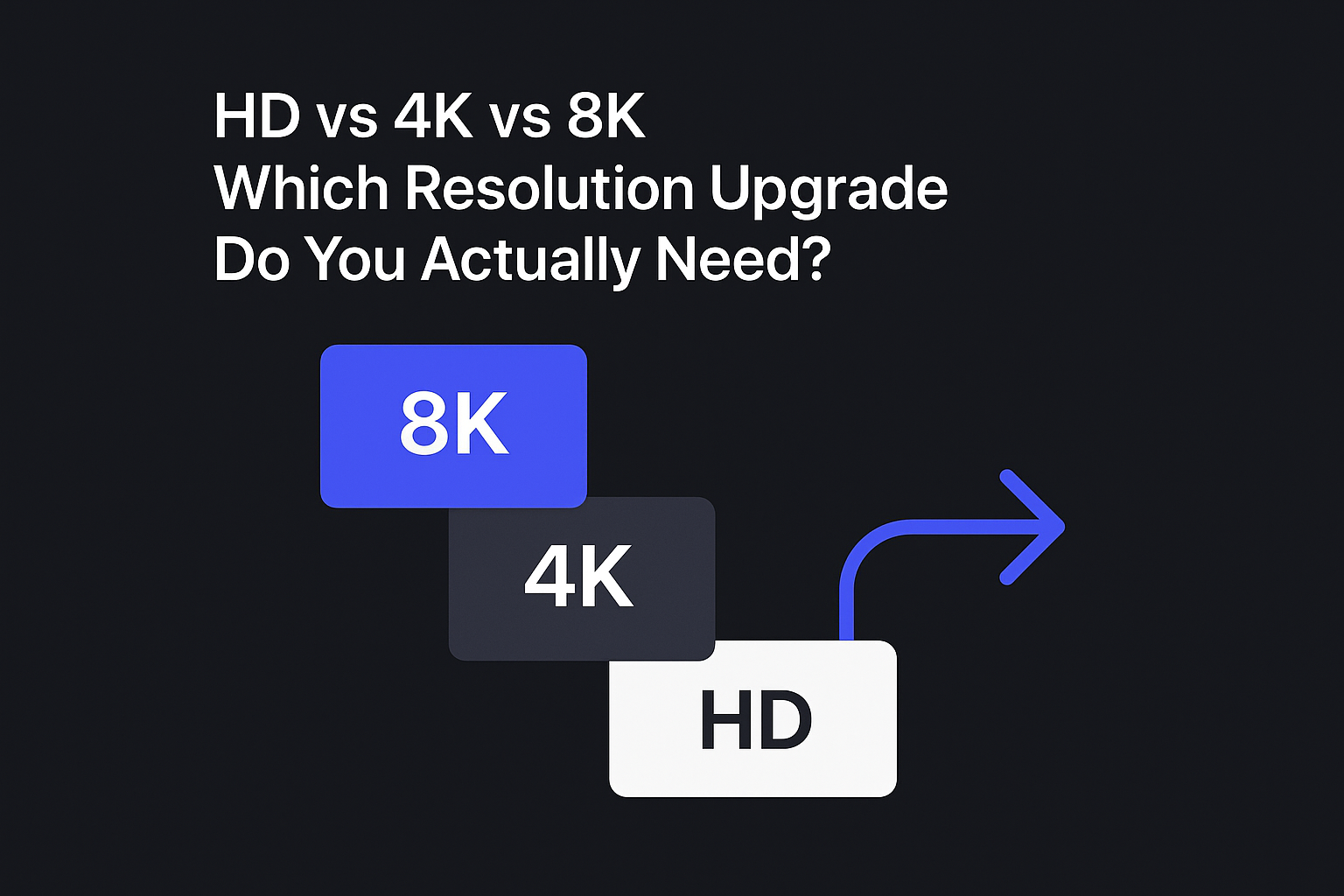
For most social posts, chats, and short-form platforms, HD is enough—higher resolutions usually get resized and compressed anyway.
For e-commerce product detail pages, zoom, YouTube thumbnails, and “big screen” reuse, 4K is the practical sweet spot.
8K is a niche upgrade: it makes sense when you’re doing large, high-end prints or delivering to true 8K displays—not as a default.
“More pixels” isn’t always the same as “more quality.” If your image is blurry or heavily compressed, you may need clarity restoration (deblur/denoise) before chasing higher resolution.
Quick self-test: pick HD, 4K, or 8K in 60 seconds
Answer these in order. Your first “yes” is usually the right choice.
1) Is this mainly for social, chat, Stories/Reels, or quick posts?
If your image is destined for Instagram-style formats (often capped around 1080px wide in practice), uploading a huge file rarely changes what viewers see after platform compression. Instagram’s own guidance notes uploads are optimized and recommends keeping within the platform’s practical limits (see Instagram Help Center upload guidance).
Pick: HD.
2) Do you need zoom, crop flexibility, or “close-up detail” to hold up?
If you’re:
building a product detail page where shoppers zoom
reusing the image for multiple placements
cropping for different ratios
…you’ll benefit from extra pixels.
Pick: 4K.
3) Are you printing large (and you care about gallery-level sharpness)?
If the output is a large print, what matters is pixels at the final print size (often discussed using the “300 DPI” rule-of-thumb). If your print is big enough, 4K may not be sufficient.
Pick: 8K (only if you truly need it).
⚠️ Warning: If you jump to 8K from a small, low-quality original, you can end up with a bigger file that still looks disappointing—just more obviously so.
HD vs 4K vs 8K (for images): the comparison that actually matters
First: “4K” is a display/video label that people apply to photos. For still images, it’s more honest to talk about pixel dimensions, because “4K” can mean different standards (UHD vs cinema). DPReview explains this mismatch clearly in “4K: What you need to know”.
With that caveat, here’s a practical way to compare them:
Option | Rough pixel tier (typical) | Best for | Biggest risk | The “good sign” you chose correctly |
|---|---|---|---|---|
HD | ~1–2 MP class (e.g., 1280×720 to 1920×1080) | Social posts, chat sharing, lightweight web assets | Upscaling won’t magically add detail; oversharpening looks fake | Looks clean on mobile without artifacts |
4K | ~8 MP class (e.g., 3840×2160 or similar total pixels) | E-commerce PDP images, zoom/crop, YouTube thumbnails, large-screen reuse | File size + load speed; bad inputs show noise more clearly | Texture and text look crisp when zoomed |
8K | ~33 MP class (e.g., 7680×4320) | Large premium prints, 8K display delivery, archival master files | “Bigger disappointment”: invented textures, halos, heavy files | Your source image is already strong and you need big output |
Criteria 1: Where will people actually view it? (The 4K image converter test)
When a 4K image converter is worth it
A 4K image converter is worth it when the image will be viewed large, zoomed, or cropped—not when it’ll be squeezed into a feed tile.
The “4K image converter” question you should ask first
Before you reach for a 4K image converter, pause and decide what “4K” means for your specific placement:
If your platform effectively displays around ~1080px wide, HD is often enough.
If users will zoom, crop, or view on larger screens, a 4K-class output usually makes sense.
If you’re printing large or delivering to true 8K environments, 8K may be justified.
Social and chat platforms: HD is usually enough
If the image is going to be resized into a feed card or a story, pushing for 4K/8K often doesn’t survive the platform’s compression pipeline.
HD is the “fast and safe” choice when:
you want quick posting
you care about upload speed
you want to avoid introducing artifacts that become visible after compression
E-commerce PDP images: 4K is the practical default
On product pages, shoppers zoom. That’s where higher pixel dimensions pay off.
Shopify’s guidance is a good sanity check: it recommends 2048×2048 for square product images and notes that images should be larger than 800×800 to enable zoom (see Shopify’s image size guidelines).
Translated into a decision:
If your product images feel soft when customers zoom, 4K-class upscaling is usually the right move.
Criteria 2: Do you need more pixels—or more clarity?
A common failure mode is upgrading resolution when the real issue is clarity.
If your problem is blur, 8K won’t save you
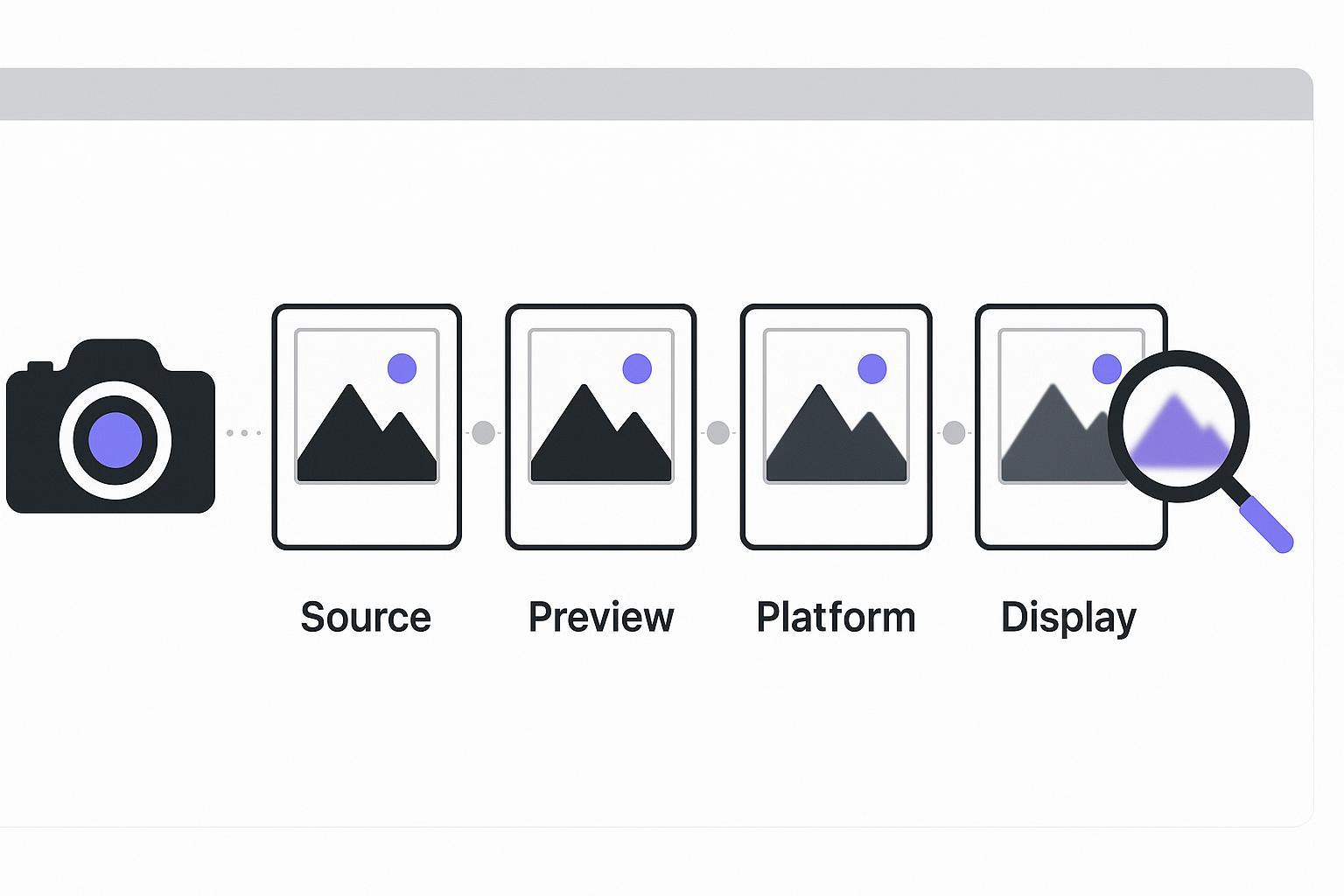
Upscaling can make edges larger, but it can’t reliably restore detail that wasn’t captured.
Look for these “clarity-first” symptoms:
the subject is soft even at the current size
text (labels, packaging, screenshots) is hard to read
compression blocks or noise are obvious
In those cases, the best workflow is often:
restore clarity (deblur/denoise)
then upscale to your target resolution
Pro Tip: If you’re debating 4K vs 8K, try a 4K result first. If the 4K version holds up when you zoom to the level your audience will actually see, 8K is probably unnecessary.
Criteria 3: Printing and “big output” reality checks
Print is where people over-upgrade the most—because print terminology is confusing.
A simple mental model:
Print quality depends on pixels at the final physical size.
Bigger prints need more pixels.
If you’re printing small (postcard size, small flyer), 4K-class images can be fine.
If you’re printing large (posters, gallery display, trade-show graphics), 8K might be justified—but only if:
the source image is already clean
you’ll actually view it up close
Criteria 4: File size, speed, and workflow cost
For creators and e-commerce teams, bigger images have hidden costs:
Slower uploads and exports
Slower page speed (which can hurt UX and SEO)
More storage for catalogs and variants
More risk of platform recompression making artifacts more obvious
The goal isn’t “highest resolution.” The goal is the smallest file that looks great in the real placement.
When to choose each option (quick recommendations)
Choose HD when…
You’re posting to social, chat, Stories/Reels, or quick marketing creatives
You’re not relying on zoom
Your original image is already clean at its current size
Next step (HD route): use an HD photo converter to make the file clean, consistent, and lightweight. (We’ll link the exact tool in the 3-exit section at the end.)
Choose 4K when… (the sweet spot for most serious work)
You need product images to look crisp on PDPs, especially with zoom
You want one master that can be cropped into multiple ratios
You’re doing YouTube thumbnails and want small text to stay readable
You’re repurposing content for large screens or presentations
Mid-article next step (primary): if you need to upscale image to 4K, use a 4K upscaler and sanity-check the result at your real zoom level. (We’ll link the exact tool in the 3-exit section at the end.)
Choose 8K when… (only if your output truly demands it)
You’re producing large premium prints
You deliver assets for true 8K displays
You’re building an archival “master” and your source image is strong
Next step (8K route): use an 8K photo enhancer only when you can clearly justify the bigger output. (We’ll link the exact tool in the 3-exit section at the end.)
FAQ
Is a “4K image converter” the same as an upscaler?
Often, yes—in everyday language people use “converter” to mean “turn my image into a higher-resolution version.” In practice, you’ll want an upscaler that also manages quality (noise, blur, artifacts), not just a pixel resize.
Will upscaling make my image look like it was shot in 4K/8K originally?
Not always. Upscaling can improve perceived sharpness and usability, but it can’t guarantee real detail that wasn’t captured. The worse the original (heavy blur, compression, low light), the more careful you should be with expectations.
Why does my 8K export sometimes look worse than 4K?
Because 8K can amplify problems:
invented textures can look “plastic”
halos/over-sharpening become obvious
compression artifacts become more visible
If your 4K result already looks clean at the zoom level your audience uses, 8K is usually unnecessary.
What’s the best resolution for YouTube thumbnails?
YouTube commonly recommends 1280×720 for thumbnails (see this YouTube thumbnail size guide). In other words: thumbnails rarely need 4K by default. But if you’re cropping heavily or your design relies on small text, a 4K master can still help.
Next step: pick your route (3 exits)
For social, chat, IG/TikTok:
If you just want your image to look clean and consistent without bloating file size, choose HD → Artedge AI HD Photo Converter
For e-commerce PDP images, YouTube thumbnails, big-screen reuse (recommended):
If you need crisp detail and zoom/crop flexibility, choose 4K → Artedge AI 4K Upscaler
For high-end print, 8K displays, gallery-level output:
If your final output truly demands maximum pixels, choose 8K → Artedge AI 8K Photo Enhancer

Dr. Katherine L. Whitmore
Dr. Katherine L. Whitmore specializes in AI-powered image enhancement and e-commerce visual optimization. She writes practical, data-driven guides on improving product image clarity, meeting marketplace standards, and increasing conversions through high-quality visuals.
Ready to Enhance Your Photos & Videos?
Improve clarity, restore old images, and upscale to 4K with natural, artifact-free detail — in seconds.
Start Creating