Document Enhancer Guide: Make Scans Readable Without Overprocessing
Improve scan readability without overprocessing. Deblur, denoise, and upscale while preserving textual integrity. No OCR.
Key takeaways
A good document enhancer makes text more legible without creating halos, crunchy edges, or smeared strokes.
If your scan is unreadable because it was captured poorly (cropped text, extreme skew, heavy motion blur), re-scanning is often faster than trying to “fix it in post.”
Document enhancement and OCR are different jobs: enhancement improves visual clarity; OCR creates searchable text.
In office and research workflows, prioritize tools that preserve textual integrity—improving readability without rewriting what’s on the page.
What a document enhancer does (and what it doesn’t)
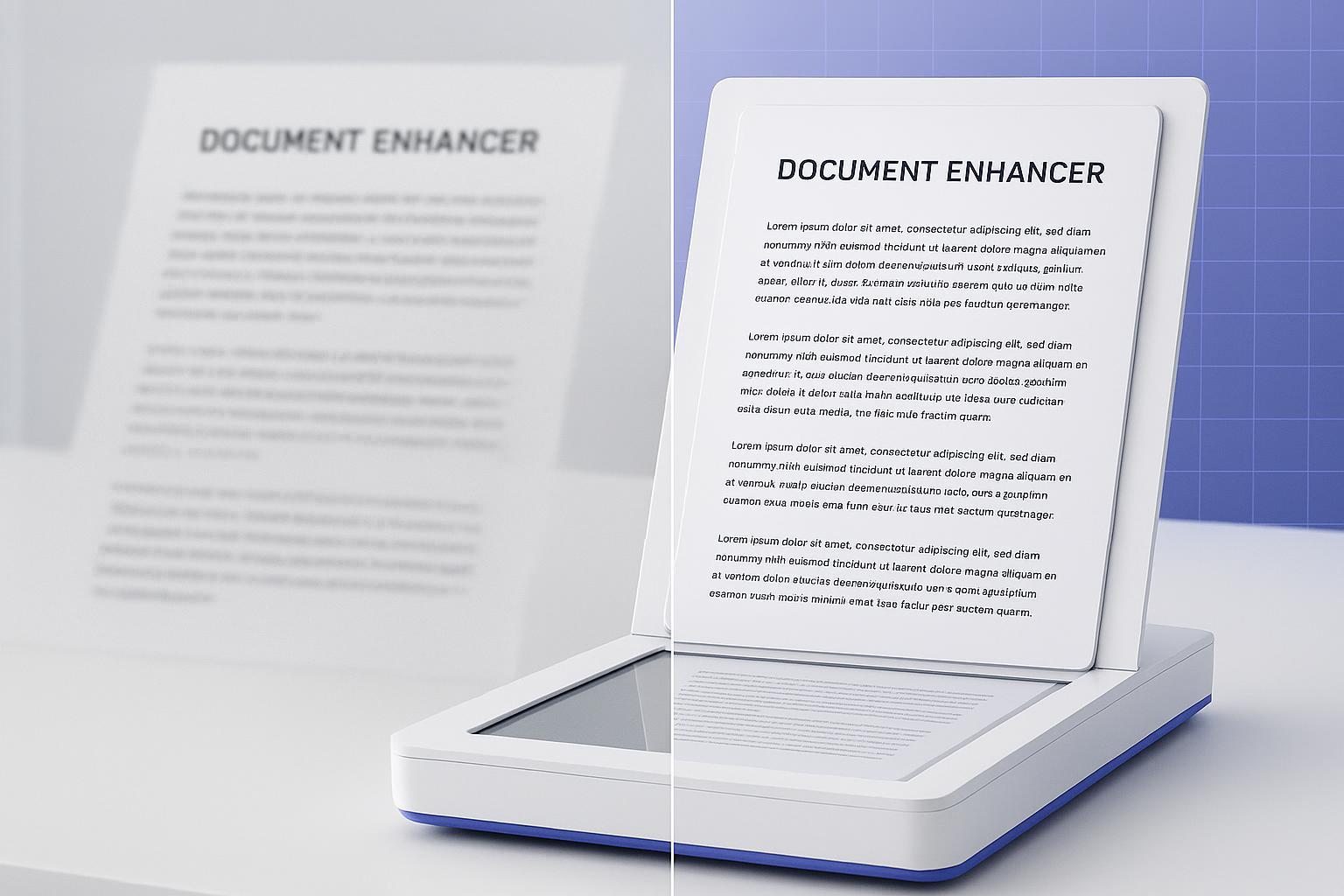
A document enhancer improves the image quality of a scanned page (or a photo of a page) so the text becomes easier to read.
Typical improvements include:
Deblur: reduce blur from camera shake or out-of-focus capture
Denoise: remove grain and scanner speckles
Super-resolution: increase resolution so small characters hold up when you zoom or print
Compression cleanup: reduce blocky artifacts from repeatedly saved JPGs
Just as important is what it should not claim:
It doesn’t make a document “court-admissible” or “forensically sound.” Visual clarity isn’t legal validity.
It doesn’t turn an image into searchable text. Many official scanning tips note that scanned documents are images unless OCR is applied (see the court’s Scanning Tips (U.S. District Court, District of Nebraska)).
A quick diagnostic: should you re-scan or enhance?
Before you touch any enhancement settings, do a 20‑second check at 100% zoom.
Re-scan if…
Words are cut off at the edge (no tool can recover missing pixels)
The page is extremely warped (common with phone captures of bound documents)
The scan was captured at very low resolution and small text is a solid blur
If you can re-scan, start with paper prep (remove staples, smooth folds) and consistent capture settings—see Document scanning best practices (Ademero).
Enhance if…
The document is mostly intact, but the text is slightly blurry
The scan is readable but looks gritty or speckled
Small text breaks down when you zoom in
The page looks blocky from compression
How to improve scan readability without overprocessing
If you only remember one rule: apply the minimum change that fixes the actual problem.
The goal is not “perfect recovery.” The goal is improved scan readability that still looks like a faithful scan.
Step-by-step: enhance scanned documents for real work
This workflow is designed for contracts, receipts, archived pages, and scanned papers.
Step 1: Export the right file (and don’t start with a PDF)
Use an image format: JPG, PNG, WebP, or BMP.
If your file is a PDF, export or split it into images (one page per image).
Many accessibility guides emphasize that blurry source material is a root cause of unreadable scans (see Quality Scanning for Accessibility (University of Oklahoma PDF)).
Step 2: Check size and choose a representative page
Keep each image under 50MB.
If you have multiple pages, test one “typical” page first (not the best-looking one).
Step 3: Fix the problem you actually have
Use this decision map:
If the text is soft → deblur scanned document pages first.
If the background looks gritty → denoise document scan images conservatively.
If tiny text breaks down when you zoom → try super-resolution (up to 4K).
If letters look blocky → fix compression artifacts before adding more sharpening.
Pro Tip: Always verify at 200% zoom. Overprocessing usually shows up there first.
Step 4: Verify you didn’t introduce artifacts
After enhancement, check three zoom levels:
100%: are character edges clearer without bright halos?
200%: do thin strokes still look like strokes (not smeared)?
Fit-to-screen: does the page look natural, or “crunchy”?
Step 5: If you need searchable text, run OCR separately
Enhancement improves the image, but it does not automatically create searchable text.
If you need search, copy/paste, or accessibility features, run OCR after enhancement. Many accessibility checklists recommend using real text rather than images of text (see 10 best practices for accessible PDFs (University of Iowa, 2025)).
⚠️ Warning: Avoid tools that claim they will “guess” or “reconstruct” missing characters. For document workflows, you typically want clarity without content changes.
Use case: contract scans and client paperwork
For contracts and client documents, the trust question is usually: “Will the tool change what the document says?”
A good document enhancer should improve character clarity while preserving textual integrity—so the output remains a faithful visual representation of the original scan.
What to optimize for:
Clear edges for small fonts
Reduced speckle and grain
Fewer JPG blocks around sharp black text
Preserved structure (line breaks and spacing should still look consistent)
Use case: historical archives and research scans
Archival scans often suffer from low contrast, scanner noise, and repeated compression.
What to optimize for:
Better legibility of small type without turning the page into a high-contrast “poster”
Compression cleanup around letters
Conservative deblurring to avoid halos that can mislead interpretation
Use case: academic paper scans
Academic scans fail most often in the dense parts: footnotes, references, and formulas.
A practical workflow:
Test on the densest page first.
Upscale for zoom clarity, then apply deblur/denoise only as needed.
If your goal is searchable citations, enhance first and then OCR afterward.
Use case: receipts and low-contrast prints
Receipts are hard because thin thermal print fades and scans amplify noise.
What to optimize for:
Denoise lightly (too much denoise smears strokes)
Improve character clarity so totals, dates, and vendor names are easier to confirm
If the receipt is extremely faded, don’t expect perfection. The realistic win is improved readability.
Troubleshooting: what “overprocessed” looks like
Halos around letters
Cause: too much edge contrast.
Fix: reduce sharpening-like effects; prioritize deblur/denoise and compression cleanup first.
Crunchy, jagged character edges
Cause: over-enhancement on already compressed scans.
Fix: back off intensity; start from a cleaner export if possible.
Smeared thin strokes
Cause: heavy denoising removes the same fine strokes you want to preserve.
Fix: denoise conservatively; validate at 200% zoom.
FAQ
Can a document enhancer make a scanned PDF searchable?
Not by itself. Searchable text requires OCR. A document enhancer improves the underlying image so OCR has a better chance of reading it accurately.
Does enhancement change the words in my document?
A good document enhancer should not rewrite or correct text. It should improve visual clarity while preserving the document’s content.
Will enhancement make my document legally valid or admissible?
No. Visual improvement is not the same thing as legal admissibility or compliance. If your workflow has legal requirements, follow the relevant procedural rules.
What file types should I use?
Use JPG, PNG, WebP, or BMP. If your document is a PDF, export pages to images first.
Next steps
If you have a scan that’s readable-but-rough, the fastest way to see if enhancement helps is to run one conservative pass and inspect the result at 100% zoom.
Run a free enhancement with Artedge AI Document Enhancer.
Tags

Dr. Katherine L. Whitmore
Dr. Katherine L. Whitmore specializes in AI-powered image enhancement and e-commerce visual optimization. She writes practical, data-driven guides on improving product image clarity, meeting marketplace standards, and increasing conversions through high-quality visuals.
Ready to Enhance Your Photos & Videos?
Improve clarity, restore old images, and upscale to 4K with natural, artifact-free detail — in seconds.
Start Creating