Photo Quality Enhancer Online for Ecommerce: Cleaner Listings Without Reshooting
Use a photo quality enhancer online to make apparel product images clearer and more realistic—meet Amazon/Shopify zoom requirements and reduce returns.
Clear, realistic product photos do more than “look nice.” In apparel, footwear, and bags, they let shoppers read the story in the fabric: the weave, the leather grain, the stitching and edges, even the gleam on a zipper pull. When those cues are muddy, confidence drops—and returns labeled “not as described” creep up.
This guide shows you how to use a photo quality enhancer online to reveal texture and detail without introducing halos, plastic-looking surfaces, or color shifts. The goal isn’t to “replace every reshoot,” but to make existing images clearer and more true-to-life so buyers can judge materials accurately—and you can publish faster with fewer do-overs.
Key takeaways
Clearer, more realistic images build purchase confidence and can help reduce returns linked to misjudged materials—treat fewer reshoots and less retouching time as supporting benefits.
Hit platform-ready sizes: Amazon enables zoom at images 1,000 px or larger on the longest side (per Amazon’s seller blog, 2024), while Shopify recommends 2048 × 2048 for crisp zoom and retina displays (Shopify blog, ongoing guidance).
A reliable workflow: deblur → low-bias denoise → texture-preserving sharpen → upscale to target size → export in sRGB → QA at 100–200% zoom.
Prove impact with mini-cases: before/after crops, processing time, reduction in reshoot tickets, and PDP metrics (engagement, conversion, “not as described” returns).
Why clarity and texture realism matter in fashion ecommerce
When shoppers can’t touch fabric or feel leather, they rely on imagery to infer texture, structure, and finish. UX research from the Baymard Institute has repeatedly found that high-resolution, zoomable images help users evaluate products and feel confident purchasing sight unseen; many sites still underdeliver on resolution and zoom depth. According to the Baymard Institute’s product page UX research (2024–2025), improving image sufficiency and zoom fidelity directly supports purchase confidence—see the overview of product page insights here: Baymard’s product page UX overview.
Marketplace standards echo this need for detail. Amazon notes that images 1,000 px or larger on the longest side enable zoom—an interaction that, in Amazon’s own words, can enhance sales—while its technical requirements page outlines accepted formats and constraints. Shopify’s guidance recommends square product images at 2048 × 2048 pixels, with zoom behavior typically kicking in above 800 × 800. Together, these baselines ensure fabric weave, leather pores, stitching, edges, and hardware show up cleanly when customers pinch or hover to zoom.
Citations for practitioners:
According to Amazon’s seller blog, “we prefer images larger than 1,000 pixels on each side to allow for zoom, which can enhance sales.” See Amazon’s official blog guidance (2024): Amazon product photos guidance. Technical constraints live in Seller Central’s help hub: Technical image file requirements.
Shopify recommends 2048 × 2048 square product images and notes that zoom typically requires images larger than 800 × 800. See the Shopify blog: Website Image Size Guidelines.
Quick pre-audit: are your images ready for zoom?
Before you enhance, open a few representative SKUs and zoom to 100–200%. In a quick pass, confirm that fabric weave or knit patterns remain clean without jagged edges, leather grain looks natural rather than plastic, stitching and hems are crisp with no halos, edges on collars and hardware hold up, fine textiles aren’t riddled with compression speckle or moiré, and dark fabrics don’t show crushed shadows. If several of these checks fail, your catalog is a strong candidate for an online enhancement pass.
Step-by-step: use a photo quality enhancer online to make textures legible
Follow this tool-agnostic sequence in most browser-based enhancers. Think of it as progressively restoring structure, then cleaning, then revealing detail—without faking it.
Deblur first (recover structure) Start with deblur to correct motion/defocus softness. Begin at low–moderate strength and inspect 100% crops along seams and logos; if you see glow-like halos, back off.
Low-bias denoise (clean without plasticity) Apply light denoise to reduce compression speckle, especially in flat fabric panels. Avoid aggressive luminance smoothing that erases thread micro-contrast.
Texture-preserving sharpen (avoid halos) Use detail- or edge-aware sharpening with a small radius and modest amount. Check embroidered logos and hardware edges; if ringing appears, lower the radius or amount.
Upscale to platform targets (don’t overdo it) Upscale to meet zoom thresholds rather than chasing a headline pixel number. For a square catalog image:
Amazon: ensure the longest side is ≥1,000 px (1,600–2,000+ often looks better on zoom).
Shopify: aim for 2048 × 2048 to get crisp zoom and retina readiness (>800 × 800 usually enables zoom, but 2048 is the practical sweet spot).
Export in sRGB with balanced compression Export JPEG (quality ~80–90) or WebP near-lossless, in sRGB. Avoid repeated re-saves that add artifacts. Keep files performant (often ~150–300 KB for a square product image), but prioritize artifact-free zoom.
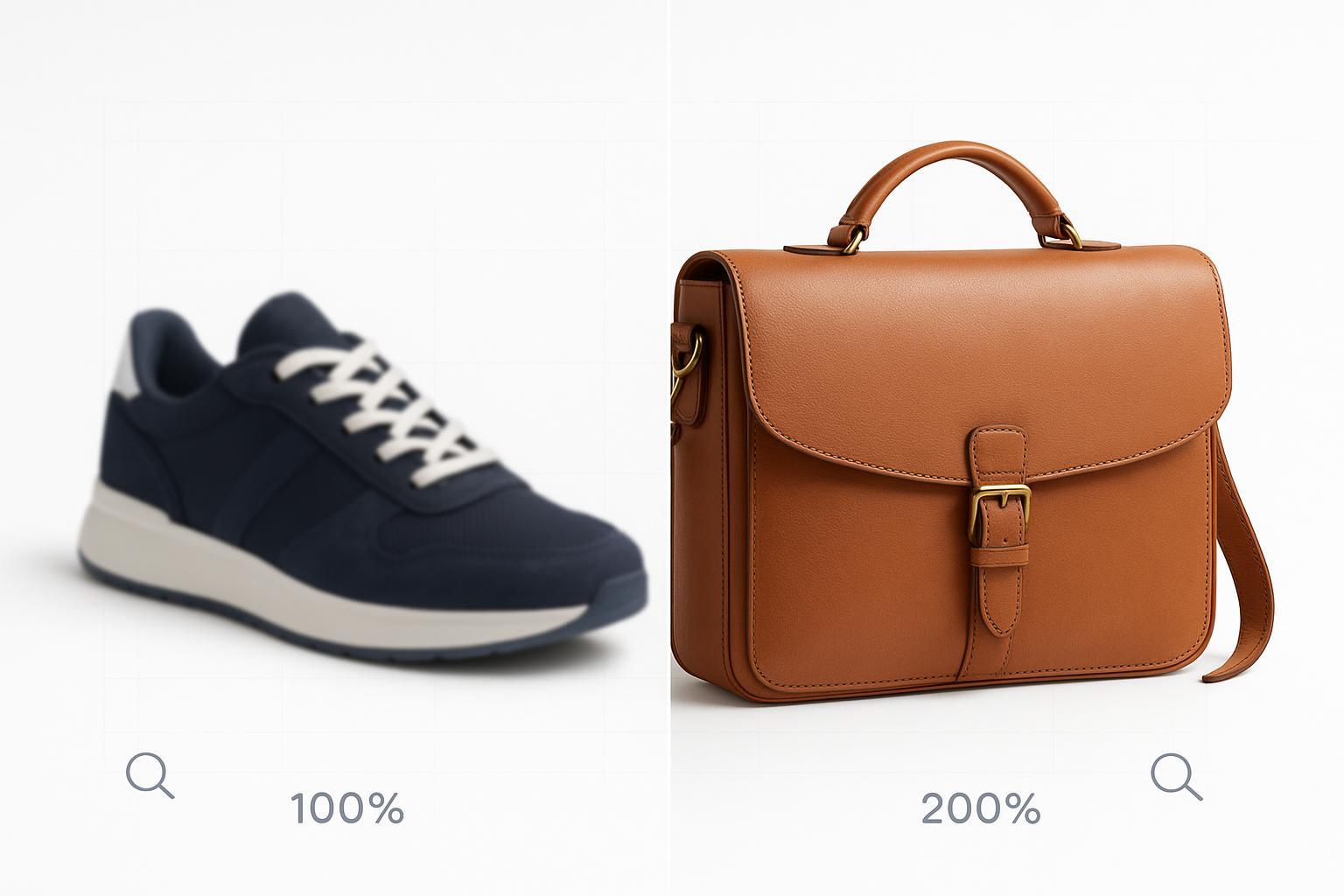
QA at 100–200% zoom (procedural) Review 100% and 200% crops: weave/knit or leather pores should look natural; stitching and edges should be crisp without halos; colors should match your swatches; backgrounds should be clean (pure white for Amazon mains).
A neutral micro-example (online, single-image mode)
Input: 900 × 900 px knit sweater photo, slightly soft with mild compression noise.
Configuration example using Artedge AI: Deblur: moderate; Denoise: low; Texture-preserve sharpen: medium; Upscale: 2.3× → ~2070 px; Export: 2048 × 2048 JPEG sRGB at ~85–90 quality.
Time: ~40–90 seconds per image depending on connection and queue.
Verification: At 100% zoom, knit threads are legible without halos; at 200%, seams retain edge definition; color swatch remains neutral.
Helpful deep dives, if you need them:
Read more about scaling trade-offs in the internal guide: AI Image Upscaler: Ultimate Guide.
Compare fix types: Remove Blur vs Sharpen: Which Fixes Soft Photos?.
Batch at scale without artifacts
Seasonal refreshes and supplier drops often mean dozens or hundreds of SKUs at once. Keep quality consistent without slowing down. Use presets by material type—lower denoise, small-radius sharpen, and conservative deblur for textiles to protect weave; edge-aware sharpening with careful highlight handling for leather and hardware to avoid ringing on seams and metal. Standardize filenames (SKU_color_view) and maintain a CSV manifest for target sizes per channel to speed review and re-exports. Calibrate throughput with a 50-image pilot; a realistic online pace is 100–500 images/hour depending on concurrency and QA depth. Sample 10–20% of outputs at 200% zoom; if artifacts appear, pause, adjust presets, and requeue.
Platform-aligned export targets
Below is a compact table you can bookmark for apparel PDPs.
Channel | Target Dimensions | Zoom Behavior | Notes |
|---|---|---|---|
Amazon PDP (main + gallery) | ≥1,000 px longest side (aim 1,600–2,000+ where feasible) | Zoom when ≥1,000 px (per Amazon seller blog) | Main image on pure white; adhere to category nuances. See Amazon’s Technical image file requirements. |
Shopify PDP | 2048 × 2048 (square recommended), uploads up to 5000 × 5000 | Zoom typically enabled at >800 × 800 | Balance compression (often ~150–300 KB) vs. artifact-free zoom. See Shopify’s Website Image Size Guidelines. |
Troubleshooting: keep details natural, avoid halos and color drift
If you notice halos around stitching or hardware edges, sharpening radius or amount is likely too high—drop both slightly or switch to an edge-aware mode. A plastic-looking fabric surface suggests denoise is too aggressive; reduce luminance smoothing or use a detail-preserve mode, then re-check at 200% zoom. Color shifts on dyed fabrics often trace to mismatched profiles or white balance—ensure sRGB exports with neutral WB and compare to a known swatch. For moiré on herringbone or tight knits, try a slightly different scale factor (e.g., 2.2× instead of 2×) and apply moiré reduction before final sharpening. Jagged edges or logo borders typically mean compression or repeated JPEG saves; increase export quality and avoid re-saving the same JPEG multiple times.
Prove the impact: a mini-case template you can copy
Use this structure to create evidence-based snippets you can share with your team, keeping claims verifiable.
SKU/Category: Women’s knit sweater (example)
Before state: 900 × 900 px; soft focus; mild compression noise
Enhancement steps: Deblur (moderate); Denoise (low); Sharpen (texture-preserve, medium); Upscale 2.3× → 2070 px
Processing time: 45–90 s per image (document your environment)
Output: 2048 × 2048 JPEG sRGB; ~230 KB
Visual QA: 100%/200% crops—threads legible; no halos; accurate color
Operational impact: reshoot requests fell from X to Y; time-to-publish −Z%
Business metric (if measured): A/B test—PDP conversion +x%; “not as described” return reason −y%
For inspiration on how strong material cues can look on a PDP, study how Allbirds highlights texture and material stories on its product pages—note the stitch and knit emphasis on the Tree Runners line: Allbirds product example.
Next steps
Run a 20–50 image pilot: apply the workflow, aim for Amazon zoom enablement and Shopify’s 2048 × 2048 target, then QA at 200% zoom. Track processing time, reshoot tickets, and one PDP metric (engagement with image zooms or conversion) to validate impact. If you need an online workflow that supports deblurring, texture-safe sharpening, and upscaling in one place, you can evaluate Artedge AI and, for deeper reading, its guide to improving image resolution without blur: How to Increase Image Resolution Without Blur.
Meta description: Use a photo quality enhancer online to make apparel product images clearer and more realistic—hit Amazon/Shopify zoom thresholds, protect textures, and reduce reshoots as a supporting benefit.

Dr. Katherine L. Whitmore
Dr. Katherine L. Whitmore specializes in AI-powered image enhancement and e-commerce visual optimization. She writes practical, data-driven guides on improving product image clarity, meeting marketplace standards, and increasing conversions through high-quality visuals.
Ready to Enhance Your Photos & Videos?
Improve clarity, restore old images, and upscale to 4K with natural, artifact-free detail — in seconds.
Start Creating