Best HD Photo Converter Tools (2026): Quick Top 7 for Natural, Artifact‑Free Upscaling
Compare 7 best HD photo converter tools in 2026 tested for natural, artifact‑free upscaling, batch speed, and watermark policies — pick the right tool fast.
If you’re hunting for an HD photo converter that upgrades clarity without plastic skin, halos, or crunchy edges, you’re in the right place. We tested popular options against the qualities that matter most for real-world publishing: natural detail fidelity, artifact suppression, speed/batch handling, and privacy/watermark policies.
Want to convert photo to HD online right now? If you need a straightforward, natural‑looking result for web or 4K delivery, you can convert to HD with Artedge AI and compare your own before/after crops in minutes.
Key takeaways
Prioritize natural detail fidelity: the best HD photo converter should preserve textures and skin while avoiding over‑sharpening, ringing, and color shifts.
For e‑commerce and social teams, throughput and batch speed matter almost as much as quality—test with 10–50 images to see real bottlenecks.
Watermarks and free‑tier caps vary widely. Always check resolution ceilings, watermark rules, and credits before committing.
“HD” usually means 1080p‑class or higher (often 4K for stills). When in doubt, look for tools that clearly disclose max pixel output and upscaling factors.
How we chose
We scored tools on six weighted dimensions designed for quality‑focused visual operators:
Natural detail fidelity (30%): skin/texture realism, edge acuity, low hallucination, minimal halos/ringing.
Batch speed & throughput (20%): average seconds per image for 10–50 images; queue behavior and failures.
Artifact suppression & color accuracy (10%): cleanliness of noise removal and stability of colors vs. source.
Ease of use (15%): time‑to‑first‑output, clarity of settings, beginner friendliness.
Privacy & commercial safety (15%): watermark‑free paid outputs, retention controls, clear licensing.
Value for money (10%): usefulness of free tiers, starting prices, credit models, and per‑output economics.
Notes: Our market scan references official product pages and 2025–2026 articles. Policies and prices are subject to change.
Quick comparison table
Tool | Best for | Max output | Batch/API | Free tier | From price | Key limitation |
|---|---|---|---|---|---|---|
Artedge AI | Natural, artifact‑controlled HD→4K at speed | Up to 4×/4K (public pages) | Simple batch emphasis (public docs limited) | Free 2× PNG noted | Paid tiers for 4K | Public docs lack 8K/API specifics |
Topaz Photo AI | Photographers needing print‑grade fidelity | Up to 8× (web); strong desktop 2–6× paths | Desktop batch; web queue | Limited free web renders | Subscription (varies by bundle) | Pricing clarity varies by bundle/account |
Adobe Photoshop | Creative Cloud users who want native 2×/4× | Super Resolution 2×; Generative Upscale ~4096 px side | Desktop actions; credits model | Plan credits for generative | Included in CC plans; credits model | Pixel caps/credit allowances |
LetsEnhance | High ceilings with web batch convenience | Claims up to 512 MP; up to ~16× | Browser batch; API via Claid | Freemium credits | ~$9/mo typical entry | Free caps and exact watermark rules vary |
Pixelbin / Upscale.media | Developer + web mix (2×/4×/8×) | Up to 8× | API‑first; bulk friendly | Free/low‑tier options | Annual plans + packs | Policy clarity varies by page |
VanceAI | Quick web upscales up to 8×/8000 px | Up to 8×/8000 px | Batch on paid | 3 free credits; watermark on free | ~ $9.99/mo | Free adds watermark; limited third‑party tests |
Canva | Beginners in design workflows | Marketing copy suggests up to 8× | In‑editor; allowances by plan | AI allowances by plan | Included in Canva plans | Exact pixel ceilings not fully disclosed |
Top 7 HD photo converter picks for 2026
1) Artedge AI — Natural, artifact‑controlled HD→4K with simple batching
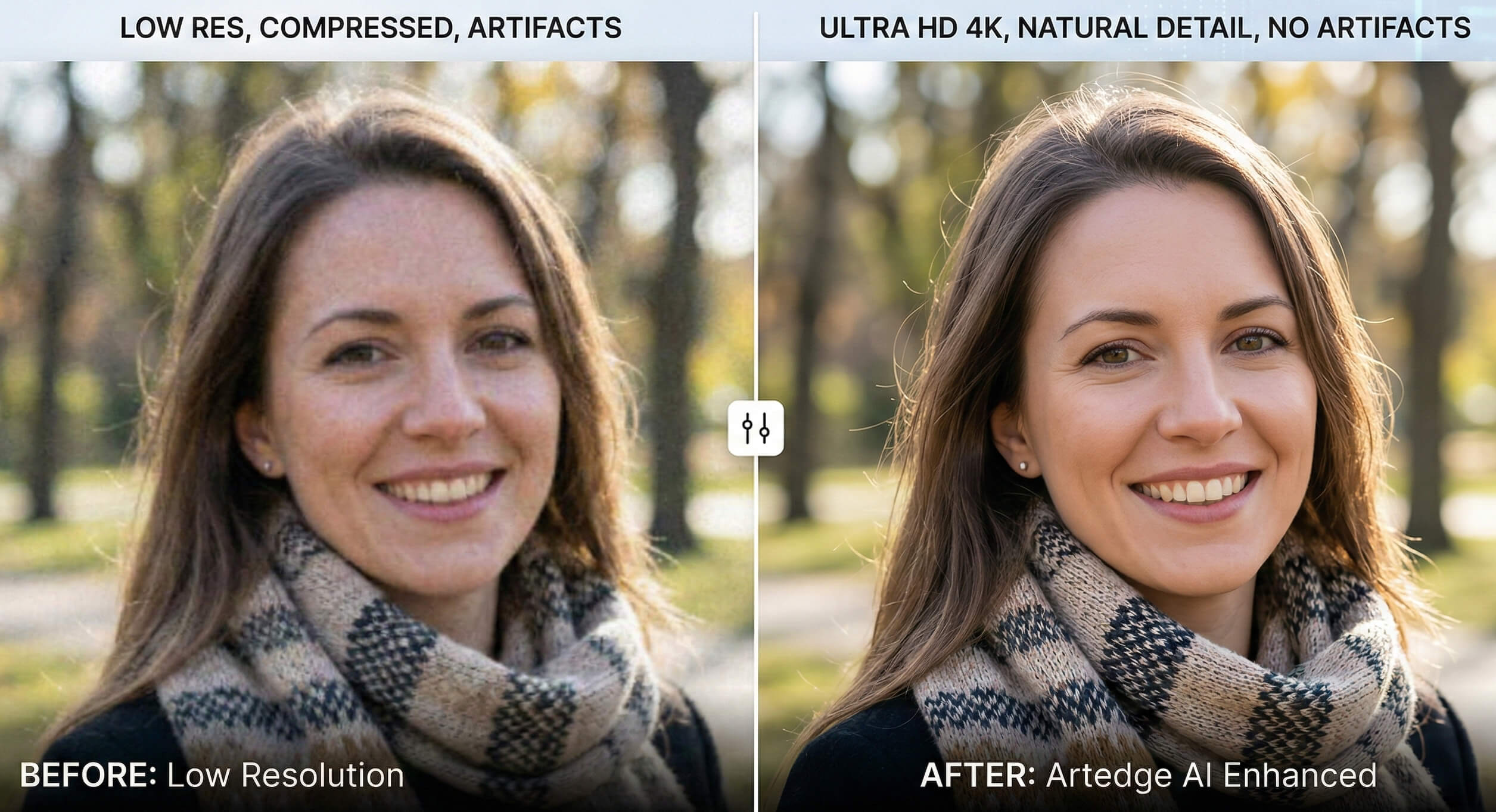
Positioning: Focused upscaler that emphasizes realistic textures, skin integrity, and consistent artifact cleanup for HD to 4K.
Key traits: Face‑aware enhancement; stable color handling; quick, beginner‑friendly flow.
Max output & factors: Public pages indicate up to 4×/4K.
Speed & batch: Built for fast turnarounds; public docs on batch/API are currently limited.
Free tier & watermark: Public site notes free 2× PNG; paid tiers unlock 4K.
Price model (subject to change): Tiers for higher resolutions/volumes.
Best for / Not for: Best for creators and small teams needing clean, natural HD conversions; not for users who require 8K or deep API automation today.
Pros
Excels at preserving natural‑looking detail while curbing halos and over‑sharpening
Particularly strong for quick, consistent HD conversions across many images
Cons
8K and full API specs not yet publicly documented
Public pricing/watermark policy pages are limited
Try it: Check Artedge Image Upscaler for 4K and face‑aware enhancement details.
Soft mid‑list CTA: Want to see how settings change your results? Run the same image through two tools and compare 100% crops side‑by‑side. Save 2–3 crops (skin, edges, text) to reveal halos and plastic skin quickly.
2) Topaz Photo AI — Pro‑grade enlargement for print‑level detail
Positioning: A go‑to for photographers who want natural textures and controlled sharpening.
Key traits: Mature enlargement stack; new “Fidelity” model (Jan 2026); strong track record in print workflows.
Max output & factors: Up to 8× on the free web upscaler; 2–6× pathways on desktop depending on settings.
Speed & batch: Desktop supports batch exports; web runs in queued sessions.
Free tier & watermark: Limited free web renders; desktop trial flow varies.
Price model (subject to change): Subscription bundles have replaced most perpetual licenses; effective price varies by bundle and account history.
Best for / Not for: Best for photographers and print‑grade needs; not for teams that need pure web‑automation APIs.
Pros
Natural, print‑friendly detail preservation
New Fidelity model aims to reduce halos and over‑processing
Cons
Pricing bundles and transitions can be confusing
Web free tier is limited and desktop requires setup
Evidence: See Topaz’s free AI image upscaler page (8×) for caps and update pointers.
3) Adobe Photoshop — Native 2×/4× inside a familiar workflow
Positioning: For Creative Cloud users, Super Resolution and Generative Upscale offer native enlargement without leaving Photoshop/Lightroom.
Key traits: Super Resolution doubles width/height; Generative Upscale offers 2×/4× via credits with model choices.
Max output & factors: Super Resolution 2×; Generative Upscale commonly ~4096 px on the long side.
Speed & batch: Desktop actions/Lightroom workflows enable semi‑batch; generative features consume credits.
Free tier & watermark: Included with CC plans; governed by generative credit allowances.
Price model (subject to change): Part of Creative Cloud plans; additional credits may apply.
Best for / Not for: Best for designers already in Adobe; not for high‑volume API automation.
Pros
Seamless workflow integration
Solid 2× baselines with credit‑based 4× option
Cons
Pixel caps for Generative Upscale
Credit allowances can throttle heavy usage
Evidence: Adobe’s Generative Upscale help page details limits and usage.
4) LetsEnhance — High ceilings and browser‑friendly batches
Positioning: Cloud upscaling with very high resolution ceilings and convenient browser batching.
Key traits: Multiple specialized models; claims up to 512 MP output; Claid.ai API for automation.
Max output & factors: Up to ~16× and very high megapixel ceilings.
Speed & batch: Browser batch (often ~20 images); commercial API available.
Free tier & watermark: Freemium credits; paid plans are watermark‑free.
Price model (subject to change): Typical entry around ~$9/month.
Best for / Not for: Best for high‑resolution needs and light browser batch; not for users who dislike credit systems.
Pros
Huge resolution ceilings
Easy browser batch and API path
Cons
Free caps can be restrictive
Most public tests are vendor‑authored
Evidence: See LetsEnhance Upscaler for capabilities and plan pointers.
5) Pixelbin / Upscale.media — API‑first with a simple consumer front end
Positioning: Developer‑friendly Pixelbin API plus Upscale.media for quick 2×/4×/8× jobs.
Key traits: API for automation; credit/subscription mix; consumer tool for fast trials.
Max output & factors: Up to 8×.
Speed & batch: Built for throughput via API; consumer app handles small batches.
Free tier & watermark: Free/low‑tier options; policy specifics vary by page.
Price model (subject to change): Annual plans and one‑time packs.
Best for / Not for: Best for teams that want automation paths; not for users who need max fidelity controls in‑app.
Pros
Strong automation story via API
Clear 2×/4×/8× options for quick usage
Cons
Policy details spread across pages
Independent fidelity tests are limited
Evidence: Review Upscale.media pricing for current credit options.
6) VanceAI — Quick web upscales with multiple modes
Positioning: Simple browser tool with several enhancement modes and 8×/8000 px claims.
Key traits: Model presets for portraits, art/CG, anime, and text; batch on paid tiers.
Max output & factors: Up to 8×/8000 px on paid tiers.
Speed & batch: Web batch available on paid plans.
Free tier & watermark: Small watermark and 3 free credits per month on the free plan.
Price model (subject to change): Starts near ~$9.99/month.
Best for / Not for: Best for occasional users who want presets; not for strict no‑watermark needs on free outputs.
Pros
Multiple presets for different content types
Easy, no‑install workflow
Cons
Free tier adds a watermark
Limited independent lab‑style benchmarks
7) Canva — A beginner‑friendly upscaler inside your design tool
Positioning: Upscaling that lives inside Canva’s editor for fast social/design tasks.
Key traits: One‑click adjustments with library/export convenience; AI allowances by plan.
Max output & factors: Marketing copy suggests up to 8×; exact pixel ceilings not fully disclosed.
Speed & batch: In‑editor workflow; heavy usage governed by AI allowances per plan.
Free tier & watermark: No universal watermark statement for the upscaler; governed by plan allowances.
Price model (subject to change): Included in Canva plans with AI allowance limits.
Best for / Not for: Best for non‑technical teams working in Canva; not for max‑control fidelity testing.
Pros
Extremely easy for beginners
Lives where many teams already design
Cons
Pixel ceilings and rules not fully transparent
Allowance limits can throttle volume
Evidence: Canva’s Image Upscaler feature page outlines current access.
Pricing notes (quick ranges)
Subscription or credit models dominate this category. Entry points commonly start around $9–$15/month, with credits or allowances governing max outputs and batch usage. Desktop‑first pro tools may bundle multiple apps and cost more annually. Free plans often limit resolution, apply watermarks, or throttle usage. All prices and policies are subject to change—confirm in‑app before committing large batches.
FAQ
What does an HD photo converter actually do?
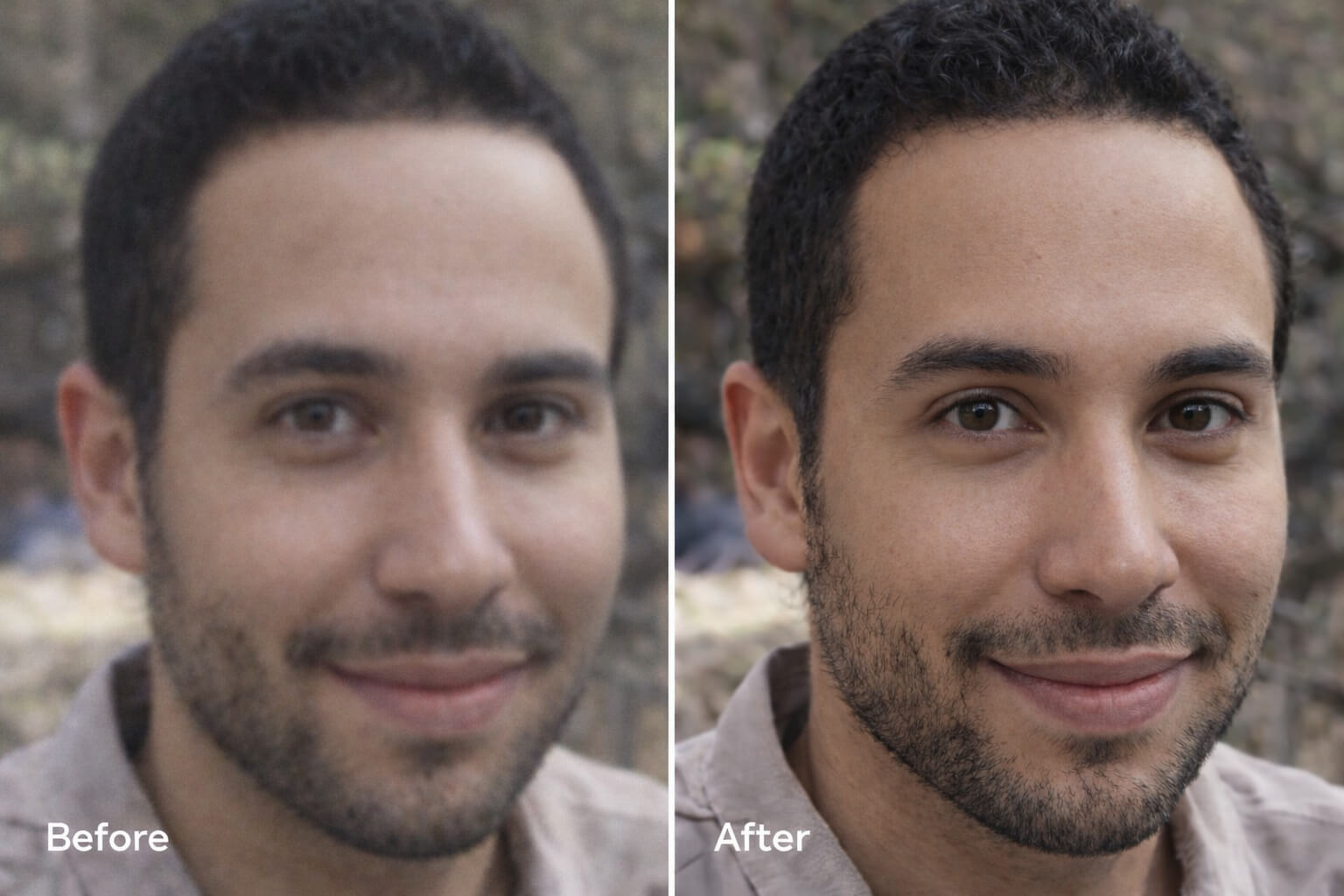
An HD photo converter enlarges and enhances images to reach HD‑class resolutions (often 1080p to 4K) while attempting to preserve natural detail and clean up compression noise. Many tools combine upscaling with de‑noise and de‑blur to produce a cleaner, more usable output for listings, ads, and print.
Is HD conversion the same as AI upscaling?
Not exactly. “HD” refers to output resolution, while AI upscaling describes the method (AI‑driven enlargement plus restoration). In practice, the best HD photo converter will use AI upscaling and artifact cleanup to reach HD/4K without harsh sharpening or plastic skin.
How can I avoid plastic skin and oversharpening?
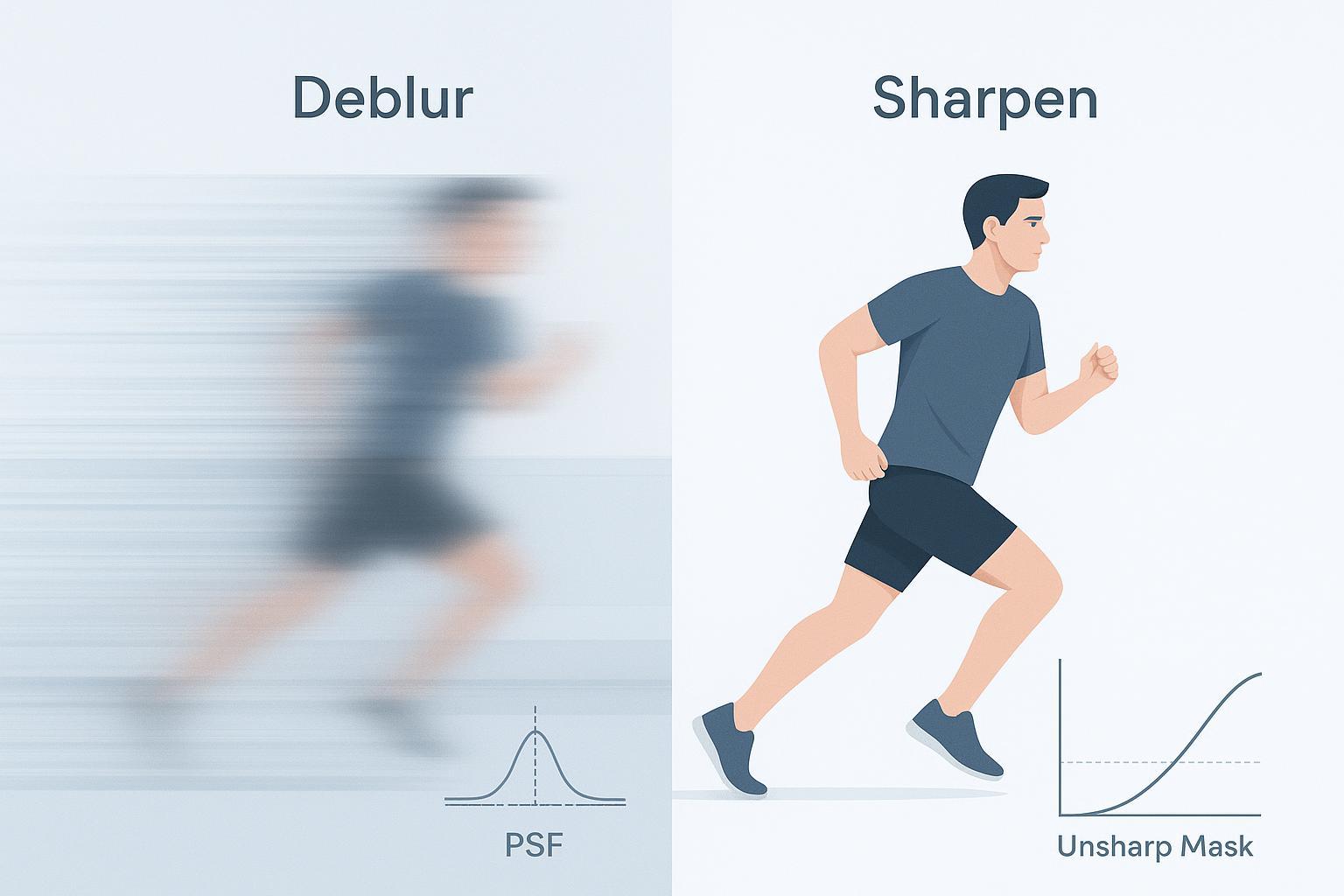
Test on a portrait and inspect 100% crops—especially cheeks, eyes, and hairlines. Favor tools that emphasize natural textures and provide subtle denoise/deblur rather than heavy sharpening. If your source is motion‑blurred, consider a targeted deblur first; for example, try a pass with an AI Unblur Image tool before final upscaling.
Will free plans add watermarks or cap resolution?
Often, yes. Many free tiers cap resolution (e.g., HD only) or add small watermarks. Paid tiers typically remove watermarks and unlock higher pixel limits. Always check free credit counts, output pixel ceilings, and watermark notes before running big batches.
Is my data safe when I upload images?
Policies vary. Look for clear statements on retention windows, processing locality, and whether paid outputs are watermark‑free and licensed for commercial use. When privacy is critical, avoid tools that don’t disclose retention or reuse policies.
Next steps
Here’s the deal: the fastest way to choose is to run the same image through two tools and compare 100% crops for skin, edges, and small text. If you want a natural look without halos, start with a controlled A/B.
Ready to try a focused option? Convert a couple of images with Artedge AI HD Photo Converter and benchmark against your current tool—pay attention to skin texture, edge halos, and color stability.
Tags

Dr. Katherine L. Whitmore
Dr. Katherine L. Whitmore specializes in AI-powered image enhancement and e-commerce visual optimization. She writes practical, data-driven guides on improving product image clarity, meeting marketplace standards, and increasing conversions through high-quality visuals.
Ready to Enhance Your Photos & Videos?
Improve clarity, restore old images, and upscale to 4K with natural, artifact-free detail — in seconds.
Start Creating