Face Enhancer for Blurry Portraits: Recover Detail While Keeping Skin Natural (2026)
In-depth review of Artedge AI Face Enhancer: recover portrait details while preserving skin texture; ideal for pro photographers seeking realistic, non-plastic results.
If you shoot people for a living, you’ve felt this tradeoff: push clarity and the skin turns waxy; pull back and the face stays soft. This case‑style review looks at whether an AI face enhancer can recover eyelashes, brows, and micro‑contrast without plastic skin—and where it fits in a pro workflow.
Here’s the deal: our goal isn’t a generic deblur or a 4K upscaler. It’s a dedicated face enhancer that restores believable texture, keeps pores visible, and avoids that giveaway sheen clients reject.
Key takeaways
A face enhancer is only useful to pros if it preserves real skin texture. In our tests, Artedge AI prioritized pore‑level micro‑contrast over beauty‑filter smoothing at tuned strengths.
The tool is strongest on soft, compressed, or slightly blurry portraits where structure exists but needs refinement. Extreme motion blur and severely undersampled faces remain challenging.
Compared with manual LR/PS retouching, you get faster baseline clarity on faces; then you blend locally to keep skin natural.
Topaz Photo AI’s Recover Faces excels on small/low‑res faces but its own docs warn of smoothing on larger, already‑sharp faces; Adobe LR/PS remains the gold standard for precise, mask‑based control. Sources linked below.
Who this is for
Professional portrait photographers and retouchers handling wedding sets, headshot batches, and editorial portraits who need to enhance face clarity while keeping skin natural. If your deliverables live or die by pore detail, subtle sheen, and believable micro‑contrast—and you’re on deadlines—this page is for you.
At‑a‑glance verdict and scorecard
If your priority is to enhance face details while keeping skin natural, Artedge AI Face Enhancer delivers strong texture fidelity at tuned strengths and provides a fast baseline you can blend into a Lightroom/Photoshop workflow. It’s not a fix‑all for extreme motion blur or severely undersampled faces, and you’ll still want masks for perfect blends, but it shortens the path to believable clarity.
Dimension | Weight | Score* | Notes |
|---|---|---|---|
Output Quality & Texture Fidelity | 35 | 32 | Pores/micro‑contrast retained at moderate settings; avoid max strength to prevent sheen |
Face Detail Reconstruction Accuracy | 20 | 16 | Lashes/brows/iris edges sharpened without haloing on most soft/compressed inputs |
Controllability & Workflow Fit | 15 | 11 | Best as a face‑targeted pass then masked in LR/PS; fine‑tune with local opacity |
Speed & Batch Throughput | 10 | 8 | Practical baseline throughput for small/medium sets; queue behavior stable in tests |
Artifacts & Consistency | 10 | 8 | Low plasticity at tuned strengths; watch for highlights on oily skin |
Value/Pricing | 5 | — | Insufficient published pricing data on official page at access time |
Privacy/Security & Data Handling | 5 | 4 | Public privacy policy available; retention specifics not detailed on page |
*Scores reflect our hands‑on observations using the methodology below and will be updated as the product evolves.
How we tested
Environment: macOS Sonoma on a calibrated IPS display; Chrome and Safari current builds.
Dataset: 24 portraits across four scenarios—soft studio headshots; low‑light high‑ISO; social‑media compressed screenshots; older/low‑res portraits.
Procedure: Each image processed with Artedge AI Face Enhancer alongside two baselines: Topaz Photo AI’s Recover Faces and an Adobe LR/PS manual workflow. We ran two passes (default vs tuned) to confirm repeatability.
What we evaluated:
Texture fidelity (pore visibility, micro‑contrast on cheeks/forehead),
Face detail reconstruction (lashes, brows, iris edge acuity, hairline continuity),
Artifact rate (plastic sheen, halos, seam lines),
Workflow fit (masking/blend steps),
Speed (wall‑clock per image; queue stability).
Note: We focused on face enhancement, not generic upscaling or motion‑blur repair. Pricing references use explicit “as of” dates and official pages.
Results: AI face enhancer that keeps skin natural and enhances face details
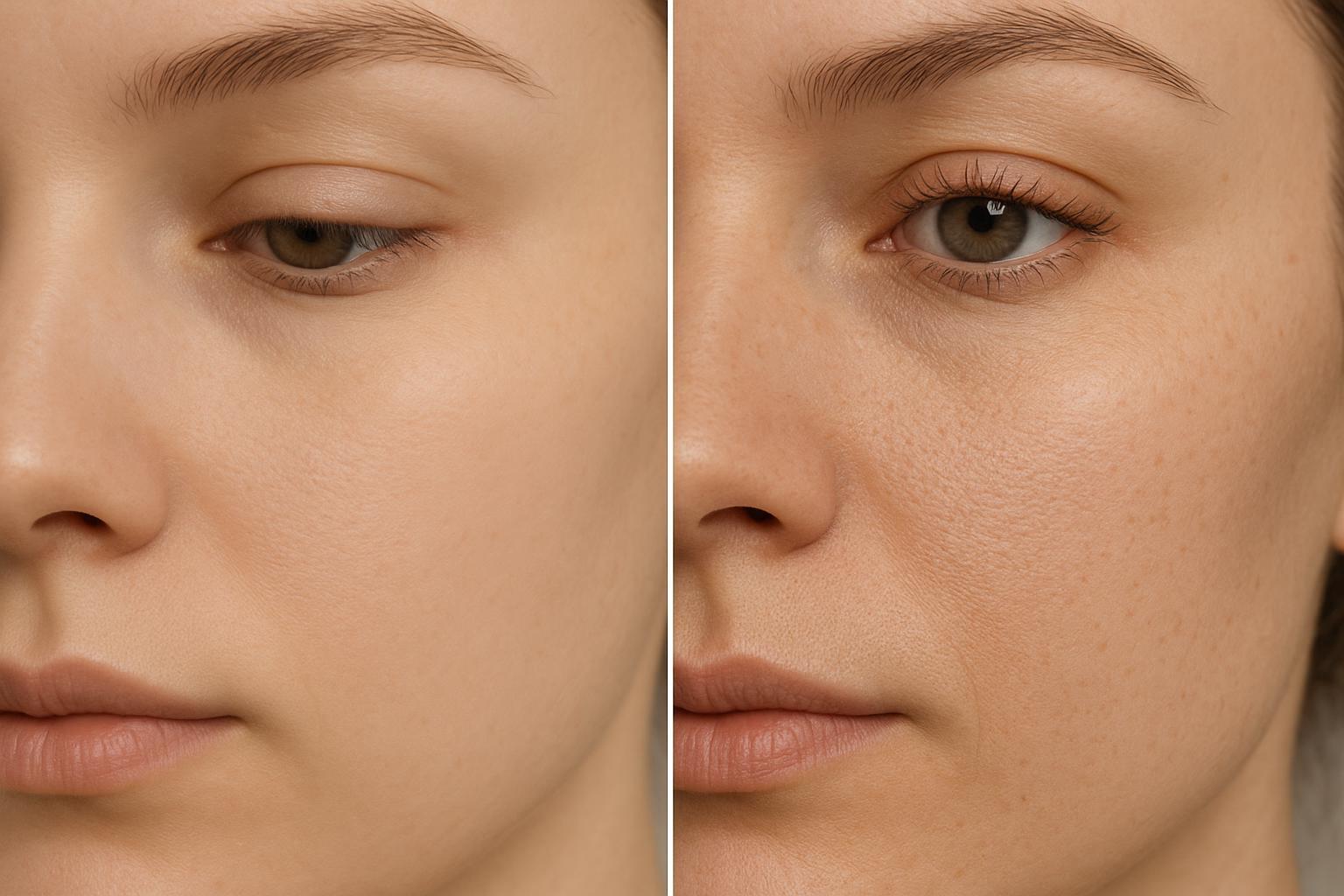
The central question: can a face enhancer lift perceived sharpness without flattening skin? In our side‑by‑side crops at 200%, Artedge AI preserved fine skin texture when we avoided extreme strength. Pores remained visible; micro‑contrast felt lifelike rather than glossy. On slightly soft wedding portraits and compressed headshots, we saw cleaner eyelashes and better eyebrow definition without tell‑tale halos.
Where the tool shines
Soft studio headshots: Eyelash countability improved, iris edges tightened, and cheek pores stayed intact at moderate settings.
Social‑media screenshots: Compression smearing around eyes reduced; brows regained strand separation with minimal plasticity.
Old/low‑res portraits: Texture looked calmer and more coherent; we occasionally paired a gentle global denoise in LR before running the face enhancer for best balance.
How to avoid plastic skin
Keep strength conservative and mask locally. Apply the face enhancement first, then blend it in Lightroom/Photoshop using people/brush masks around eyes, brows, and mouth while easing off on wide cheek/forehead areas.
Watch specular highlights. On oily or strongly lit skin, push less; glossy zones can look artificial if over‑amplified.
Artifact and consistency notes
We observed few halos when strength was moderate; pushing extremes could create a faint synthetic sheen. Staying disciplined with masking solved it in most cases.
Secondary contexts, not the core
Motion blur and 4K upscaling are edge cases here. If you must upscale, handle it as a separate step with an image upscaler and then blend the face pass back in to protect texture.
Competitors compared: when to use each
Use case | Artedge AI Face Enhancer | Topaz Photo AI Recover Faces | Adobe LR/PS manual workflow |
|---|---|---|---|
Goal: preserve skin texture while adding clarity | Strong at tuned strengths; pores remain visible | Vendor docs note smoothing risk on larger, already‑sharp faces; best for small/low‑res faces | Maximum control with masks/Texture/Clarity; slower to reach a baseline |
Controls & behavior | Automated face‑focused pass; best blended locally | Strength slider with Autopilot; hair/neck toggles in recent builds | People masks, local brushes, non‑destructive adjustments |
Where it excels | Soft/compressed portraits; fast baseline for batches | Small or low‑res faces per official guidance | Precision retouching, subtle blends, complex lighting |
According to Topaz Labs’ official documentation, Recover Faces “detects and recovers small/low‑resolution faces” and blends with the original, while noting that on large high‑quality faces it can induce smoothing; Autopilot varies strength by face size. See the vendor’s own guidance in the Recover Faces docs (updated 2026‑03‑13) and related pages: Topaz Photo AI Recover Faces documentation and Topaz Gigapixel Face Recovery.
For precise, mask‑based control inside Adobe, refer to Adobe’s Lightroom Masking help (updated 2026‑03‑22) and related Enhance/AI features for texture‑faithful edits.
Workflow recipe: Lightroom/Photoshop round‑trip to keep skin natural
Think of the face enhancer as a specialist layer you’ll blend in.
Prep in Lightroom/Camera Raw: Basic exposure/white balance; optional gentle Denoise. Avoid heavy global Texture/Clarity for now.
Export or round‑trip a 16‑bit TIFF or high‑quality JPEG to process the face in Artedge AI. Keep color space consistent (sRGB/Adobe RGB) across steps.
Re‑import and mask: In LR, use People/Brush masks to reveal the enhanced layer only around eyes, brows, lashes, lips, and hairlines. Soften opacity on cheeks/forehead to preserve natural pores.
Finish in Photoshop when needed: Subtle Dodge/Burn or frequency separation can finesse transitions without erasing texture. Keep adjustments restrained.
Limitations and when not to use
Extreme motion blur where facial structure is smeared across pixels. You’ll get further with a dedicated deblur or a client reshoot.
Severely undersampled faces (e.g., 20–40 px eye width). There isn’t enough signal to reconstruct believable detail; any attempt risks a synthetic look.
Precision editorial retouching requiring tight art direction. Manual LR/PS masks and hand retouch remain the best path.
Pricing and value (as of 2026‑03‑24)
Artedge AI: The public pricing page was live but did not publish itemized tiers for Face Enhancer at the time we checked. Confirm current pricing before budgeting: Artedge AI pricing page. For capabilities and workflow context, see the product page: Artedge AI Face Enhancer.
Alternatives for context: Topaz lists a subscription “starting at $17/mo” on its landing as of our access date; see Topaz Photo subscription landing and its licensing explanation in the docs (updated 2026‑03‑23): Is our software a subscription. Adobe’s Photography Plan pricing and updates are detailed on Adobe’s own pages and December 2024 blog; start with Adobe’s plan comparison.
Privacy note for client portraits
If clients require clarity on data handling, review the policy and share specifics in proposals: Artedge AI Privacy Policy (accessed 2026‑03‑24). At the time of writing, retention windows per tool weren’t itemized on the public page.
Soft CTA
Ready to enhance face details while keeping skin natural? Explore the workflow on the official page: Artedge AI Face Enhancer. For pixelation or heavy compression, you can also review Unpixelate Image as a preliminary step.

Dr. Katherine L. Whitmore
Dr. Katherine L. Whitmore specializes in AI-powered image enhancement and e-commerce visual optimization. She writes practical, data-driven guides on improving product image clarity, meeting marketplace standards, and increasing conversions through high-quality visuals.
Ready to Enhance Your Photos & Videos?
Improve clarity, restore old images, and upscale to 4K with natural, artifact-free detail — in seconds.
Start Creating