AI Photo Enhancer vs Photoshop: Which Is Better for Fast Quality Fixes?
Compare AI photo enhancers vs Photoshop for fast blur/noise/upscale fixes. See who should choose what—and a simple decision framework.
If your job depends on visuals—product listings, ad creatives, social posts, thumbnails—you don’t have time for a 30-minute cleanup every time an image comes in blurry, noisy, or too small.
This comparison is for one specific situation: fast quality fixes. Not complex photo compositing. Not high-end retouching. Just getting an image from “meh” to “usable and professional” quickly—with the least workflow friction.
Key takeaways
If you need fast, repeatable improvements (blur, noise, low resolution) with minimal effort, an AI enhancer is usually the fastest path.
If you need precise control (selective edits, layers, masking, compositing), Photoshop is still the better tool.
For many content teams, the best setup is: AI enhancer for the first pass, Photoshop only for images that truly need manual precision.
Quick comparison: AI enhancer vs Photoshop
Criteria | AI enhancer | Photoshop |
|---|---|---|
Time to a “good enough” result | Usually minutes (often one-click) | Depends on skill + steps; can be fast for experts, slower for most |
Learning curve | Low | High |
Best at | Upscaling, deblurring, denoising, quick clarity boosts | Precise edits, layers, masking, composites, art direction |
Consistency across many images | Typically strong for common defects | Strong if you build actions/presets; still more manual overhead |
Control | Limited (you trade control for speed) | Full control |
When it’s the wrong choice | Complex edits, selective retouching, brand-critical color work | High-volume “quick fixes” when time is the constraint |
Key Takeaway: If your priority is speed and low effort, start with an AI photo enhancer. If your priority is control, start with Photoshop.
Who should choose which?
Choose an AI enhancer if you:
Need to fix blur/noise/low resolution fast (and often in volume)
Don’t want to learn a complex editing workflow
Mostly need “cleaner, sharper, higher-res” rather than creative manipulation
Choose Photoshop if you:
Need selective changes (only adjust the product, only adjust the background, etc.)
Must match a strict brand look (exact color grading, precise masking)
Do compositing, layout, or multi-layer work
If you’re unsure, use this simple rule:
If the fix can be described as “make it clearer” → start with an AI enhancer.
If the fix can be described as “change this specific part” → start with Photoshop.
Speed: how quickly you can get a usable result
Speed is not just processing time—it’s the whole path from “I have a bad asset” to “I can publish.”
With an AI photo enhancer, the workflow is usually:
upload
let the model enhance
download
For example, Artedge AI uses a simple upload → enhance → download flow, and its product page positions the tool as “professional image enhancement made simple.”
Photoshop can be fast when you already know exactly what to do. But for many non-designers, speed gets lost in:
choosing the right tool or filter
dialing settings
redoing steps when the image looks over-processed
If you’re on deadlines, the main advantage of an AI enhancer is predictable workflow: the steps don’t change much from image to image.
Learning curve and workflow friction
Photoshop is powerful because it gives you control. But control comes with setup and practice:
layers
masks
selections
multiple ways to solve the same problem
That’s a feature for designers. For fast-moving operators, it can be a tax.
An AI enhancer reduces decision points. You’re not deciding which tool chain to use—you’re deciding whether the output looks natural and fits your use case.
A practical workflow for content teams
Default: run images through an AI enhancer first.
Escalate to Photoshop only when: the AI result looks unnatural, you need selective edits, or the image is mission-critical.
This is how you keep speed without giving up quality control when it matters.
Quality outcomes for common “fast fixes”
Most “quality fixes” fall into three buckets: noise, blur, and low resolution. Here’s how each tool tends to perform.
Noise reduction (grainy, low-light photos)
Photoshop includes AI-driven options. Adobe describes AI Denoise as a way to “reduce noise while recovering detail,” and notes it’s a premium feature with file-size constraints (for example, up to 56 MP) in the Adobe Help Center: Photoshop AI Denoise (premium; up to 56 MP).
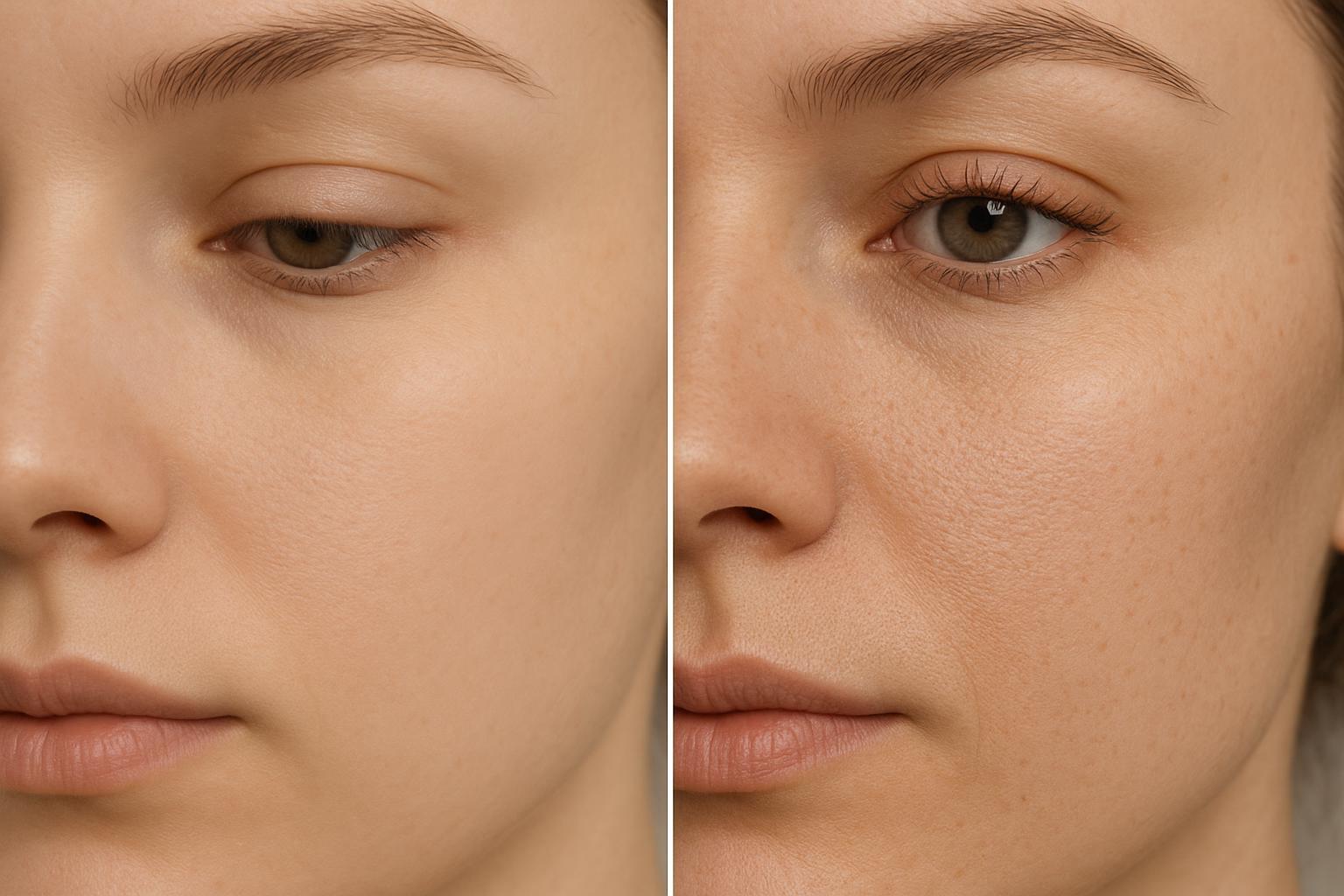
AI enhancers are also strong here, especially when the goal is “clean and usable” rather than perfect texture fidelity. The trade-off is that aggressive denoising can sometimes look overly smooth.
Pro Tip: After any noise reduction—Photoshop or AI—zoom in on skin, fabric, and gradients. If it looks plasticky or smeared, dial back or switch approaches.
Deblurring (motion blur, out-of-focus)
Deblurring is where AI tools often shine for non-designers because you don’t have to know which sharpening method to try first.
Artedge’s AI Unblur Image tool (batch up to 50) is positioned specifically for removing blur and restoring sharpness, with batch processing mentioned on the page—useful when you’re cleaning up a set of assets.
Photoshop can fix blur too, but the “fast” path depends on your comfort with the tool. And some blur types (heavy motion blur, severe defocus) can be hard for any tool to truly recover without artifacts.
Upscaling (small images that need to look good on modern screens)
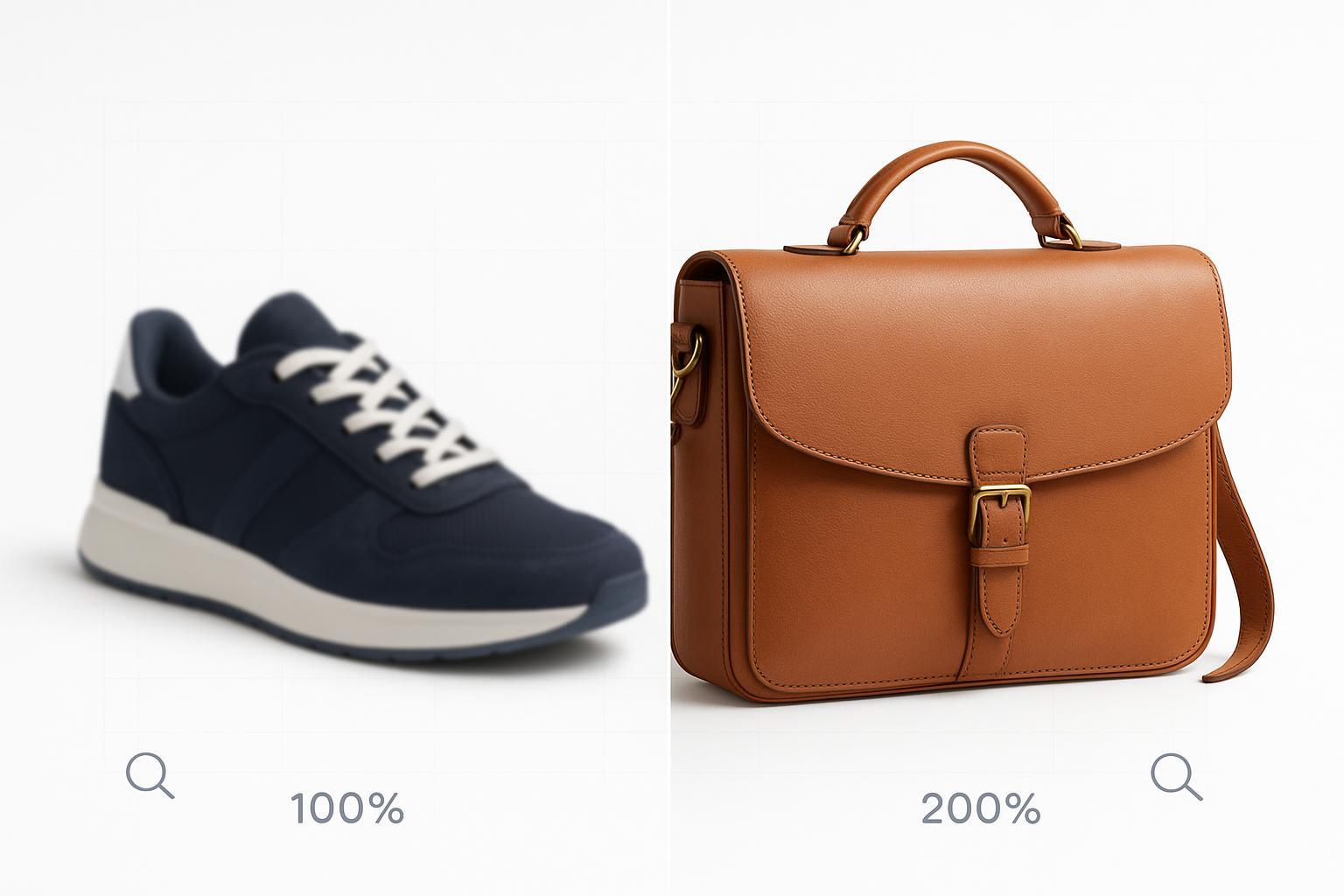
If you’re working with older assets or pulled-from-the-web images, you often need more pixels—without making the image look crunchy.
Artedge’s Image Resolution Enhancer (upscale up to 4×) focuses on upscaling and positioning around preserving detail and keeping the result natural.
Photoshop can upscale too, but the result and effort depend on your method and your tolerance for manual cleanup.
Control and edit depth: where Photoshop still wins
If you need any of the following, Photoshop is in its element:
selective edits (fix the subject but not the background)
compositing (combine elements from multiple images)
brand-critical color work
precise cleanup (object removal with tight edges, complex hair, product packaging text)
This is the core trade: AI enhancers optimize for speed, Photoshop optimizes for control.
Consistency and volume: one image vs many
Fast-moving teams rarely fix one image. They fix dozens.
In Photoshop, consistency is achievable—but it often requires:
building actions
using presets
maintaining a repeatable workflow
AI enhancers can be more “plug-and-play” for repeatable defects like mild blur, compression noise, or low resolution.
⚠️ Warning: For ecommerce or brand work, always spot-check AI-enhanced outputs for unintended detail changes (logos, text, product texture). If fidelity matters, keep Photoshop in the loop.
Cost: the subscription isn’t the whole story
Photoshop’s cost is usually clear: a subscription.
The hidden cost is time:
time to learn
time to edit
time to redo
If your team’s bottleneck is turnaround speed, the best ROI question is often:
“What does it cost us when an image delays a listing, campaign, or post?”
For many operators, an AI enhancer wins simply by removing friction.
A simple decision framework (3 questions)
Do I need selective control or just better quality?
Selective control → Photoshop
Better quality fast → AI enhancer
How many images am I fixing this week?
One or two → either can work
Dozens+ → AI enhancer first, Photoshop for exceptions
What’s the risk if the result isn’t perfect?
High stakes (brand-critical, print, hero image) → Photoshop (or Photoshop + AI assist)
Low-to-medium stakes (social, ads, listings) → AI enhancer is often enough
FAQ
Is an AI enhancer “good enough” for professional use?
Often, yes—especially for common fixes like noise, blur, and low resolution. The key is to judge the result at 100% zoom and make sure it looks natural for your channel.
Will Photoshop always produce higher quality than an AI enhancer?
Not always. Photoshop can produce extremely high quality, but only when the user applies the right tools with the right settings. AI tools can outperform manual workflows for speed—and for certain repairs—because the model is specialized.
Does Photoshop have AI features for enhancement?
Yes. Adobe documents AI-powered features such as Neural Filters that use machine learning to simplify enhancements (including removing JPEG artifacts) in the Adobe Help Center: Neural Filters use Adobe Sensei machine learning.
What’s the biggest risk with AI enhancement?
Over-processing and fidelity drift: overly smooth textures, haloing, or small details changing. For product shots, check text, logos, and fine patterns.
What’s the fastest workflow if I already use Photoshop?
Use an AI enhancer as the first pass (especially for blur/noise/low-res), then finish in Photoshop only if you need selective corrections.
Next steps
If your goal is fast, low-friction quality improvement—especially for blur, noise, and low-resolution assets—try running a few real images through Artedge AI and compare the time-to-result against your usual Photoshop workflow.
If you’re still deciding, use this rule of thumb: AI enhancer first, Photoshop for exceptions.

Dr. Leo K. Anderson
Dr. Leo K. Anderson writes about AI photo enhancement, image upscaling, video quality improvement, and photo restoration. He focuses on practical, test-driven guides that help creators, e-commerce teams, and everyday users get clearer, more usable visual results with less effort.
Ready to Enhance Your Photos & Videos?
Improve clarity, restore old images, and upscale to 4K with natural, artifact-free detail — in seconds.
Start Creating